Import your wrap with the Tesla app or a USB drive
Check the original PNG, choose an import method and verify the result.
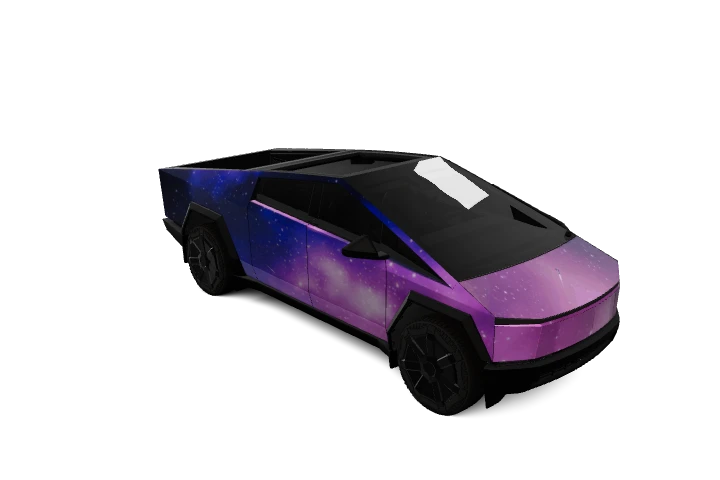
Download the original PNG for your exact vehicle version and keep a backup. A screenshot, a WebP vehicle preview or a JPG is not the import file.
Check the file first
Use the matching template dimensions: commonly 1024 × 1024, with 1024 × 768 for Cybertruck. Current Tesla requirements include PNG format, a maximum size of 1 MB and a filename up to 30 characters using letters, numbers, spaces, dashes or underscores. Recheck edited files; a browser preview alone does not certify import compatibility.
Import through the app
Tesla’s current instructions require app version 4.59.0 or later. Open Creations → Wrap → Upload and select the PNG. Then open Toybox → Paint Shop in the vehicle and choose it in the Wraps tab. Menu labels and availability can vary with software and model.
Import through USB
- Back up important files before preparing the drive. exFAT and FAT32 are common supported formats; NTFS is unsupported.
- Create a
Wrapsfolder at the root of the drive. - Put the PNG directly inside it.
- Connect the drive and choose the wrap in Paint Shop.
Formatting erases files, so back up first. Keep map and firmware update files off the wrap drive. Current Tesla instructions allow up to ten wraps from the app and ten from USB.
Check the result
Inspect both sides and bumpers. Misalignment suggests a template mismatch. If nothing appears, check the file, filename, folder and drive in that order.
Explore more guides →