Understand Paint Shop before designing a wrap
How a flat image becomes a digital vehicle wrap, and why the exact template matters.
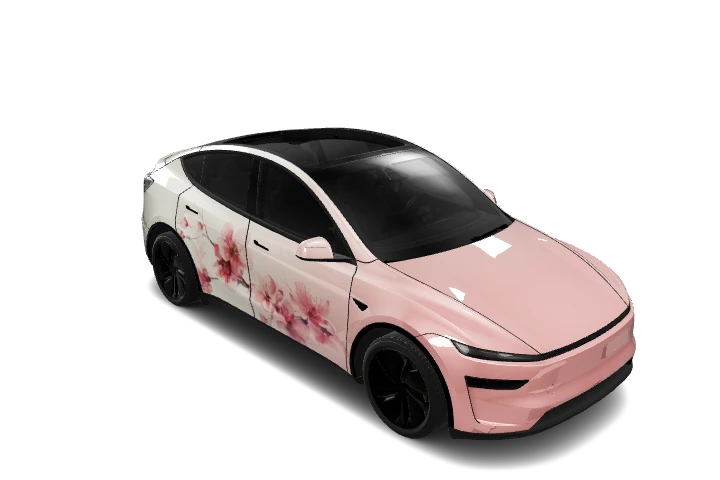
Paint Shop personalizes the vehicle model shown on your touchscreen and in the Tesla app. A downloaded wrap is an image for that model. Physical color changes still require a separate installation.
A map of the body panels
A UV template assigns a region of a flat image to each body panel. The model places those regions back onto the doors, hood and bumpers. An ordinary photo does not know this layout, so covering the entire map can split or rotate the subject.
Start with two colors or broad stripes before adding detailed artwork. A simple test makes panel direction easier to understand.
Choose the exact version
The same model family can have several templates. Original Model Y, its 2025+ variants and Model Y L have separate entries. Early Model 3 and 2024+ variants also differ. Check the complete vehicle label before downloading.
Inspect a design on this site
Choose a family and version in the library. Use the map icon to switch the card to its PNG. The 3D button opens a quick preview; the design title opens its detail page and larger viewer.
Check the front and rear, both sides, roof and hood. Look for reversed lettering, awkward door seams and unintended differences between sides. Confirm the imported result in your vehicle, since the browser is a design preview.
Feature availability and menu labels depend on vehicle software. Consult your model’s current instructions if Paint Shop is unavailable.
Explore more guides →