Wrap missing or misaligned? A practical checklist
Separate import failures from template problems and test one variable at a time.
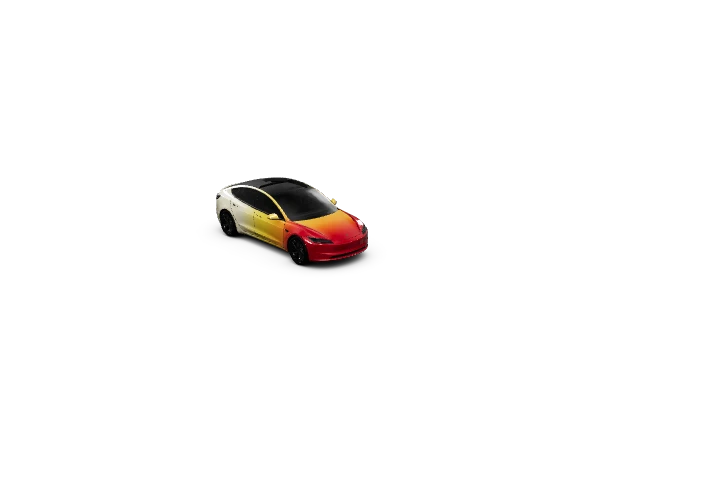
If the wrap is missing from the list, start with import checks. If it loads but looks wrong, start with the template. Keep the original and change one variable per test.
Verify the image format
Use the original PNG download. Renaming a JPG or WebP extension does not convert the file.
Check size and dimensions
Confirm the file is no larger than 1 MB and matches its template. Editing can increase size. Avoid compression steps that crop the image or change its proportions.
Simplify the filename
Try my-wrap.png while testing. Avoid emoji and special characters and follow Tesla’s filename length limit.
Check the drive
Place the file directly inside the root-level Wraps folder. Use a supported drive format and keep map or firmware update files off it. Back up important files before formatting anything.
Compare with a known working design
Use one simple official design for the same vehicle. If it works, focus on your image. If both fail, check software, the device and the import path.
Confirm the complete vehicle label
Year and trim matter as well as model family. Rotating a preview cannot repair the wrong template.
Inspect seams and direction
Check lettering, bumpers and door edges in 3D. Broad stripes make a useful alignment test before detailed artwork. Unremoved template outlines can also create unwanted dark seams.
If the problem remains, note the model, software, dimensions, size and import method. Remove personal information from any screenshots you share.
Explore more guides →